
Manipulating config files with PowerShell
It is a quite common situation when you need to prepare multiple Sitecore servers with different roles. If you take a look Sitecore documentation you will find a huge amount of tables with configuration files that need to be enabled/disabled.
Going manually through all of them isn't the most fun task you could do, so I prefer to do this only once. Don't repeat yourself :)
Also, this would be needed for an environment automation work I'm involved in, but this would be a separate set of posts.
Approach
First, review the configuration for version 8.0 and put it in some readable format. Then, create a PowerShell script to switch configurations and embed them into build pipeline (this part is not covered).
Sitecore configuration
Unfortunately, it doesn't have a nice Excel spreadsheet as 8.1, so I went through various pages on docs.sitecore.net and created my file: [Sitecore 8.0 update 3 configuration checklis/images/com/2016/06/sitecore-8-0-upd-3-configuration-checklists.xlsx).
This file includes:
- 4 server roles configuration
- Transforms checklist
- Security & other configurations
** only SOLR enabled configuration *
PowerShell
The script itself is quite easy: two functions - one to disable files and one to enable them. Functions accept website root as a parameter and a PowerShell hashtable with enabled and disabled file paths arrays (just copy required file paths from excel above)
function Disable-Files($root, $files) {
    $files.disabled |
        ForEach-Object {
            $path = Join-Path $root $_

            dir "$path*" |
                ren -NewName {
                    "$_.DISABLED"
                    write-host "Disable: $($_.fullname)"
                } -Force
        }
}

function Enable-Files($root, $files) {
    $files.enabled |
        ForEach-Object {
            $path = Join-Path $root $_

            dir "$path.*" |
                ? name -match '(?i)\.disabled|\.example$' |
                ren -newname {
                    write-host "Enable: $($_.fullname)"
                    $_.name -replace '(?i)\.disabled|\.example$', ''
                } -Force
        }
}

$webrootPath = "d:\temp\Sitecore 8.0 rev. 150427\Website\"

$roles = @{
    processing = @{
        enabled = @(
            ".\app_config\include\Sitecore.Xdb.Remote.Server.config"
            ".\app_config\include\Sitecore.Xdb.Remote.Server.MarketingAssets.config"
        );
        disabled = @(
            ".\app_config\include\Sitecore.Analytics.Automation.TimeoutProcessing.config"
            ".\app_config\include\Sitecore.Analytics.Tracking.config"
            ".\app_config\include\Sitecore.Analytics.Tracking.Database.config"
            # ...
            ".\app_config\include\social\Sitecore.Social.LinkedIn.config"
            ".\app_config\include\social\Sitecore.Social.ProfileMapping.Facebook.config"
            ".\app_config\include\social\Sitecore.Social.ProfileMapping.GooglePlus.config"
            ".\app_config\include\social\Sitecore.Social.ProfileMapping.LinkedIn.config"
            ".\app_config\include\social\Sitecore.Social.ProfileMapping.Twitter.config"
            ".\app_config\include\social\Sitecore.Social.SocialMarketer.config"
            ".\app_config\include\social\Sitecore.Social.Twitter.config"
            ".\app_config\include\Sitecore.WebDAV.config"
        );
    }
    cm = @{
        # ...
    }
    cd = @{
        # ...
    };
    # ...
}

Disable-Files $webrootPath $roles.processing
Enable-Files $webrootPath $roles.processing
Execution
After execution you would see following:
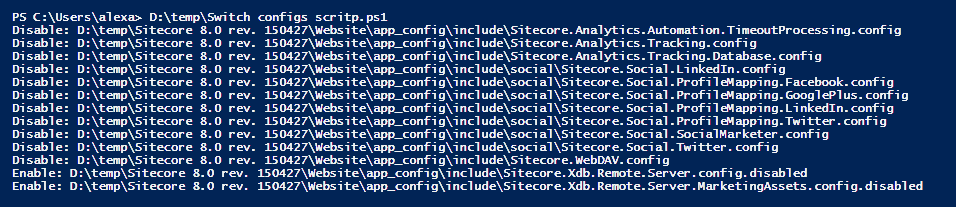
We are done - config files extensions changes to .DISABLE where needed (and back)
Format
You could also use CSV format to upload data as it was done in like it was done in @MichaelWest101 tweet, but this was prepared for PowerShell DSC and it's .psd1 format.
As usual: Share if you like the post. follow me on X @asmagin_